Skip to Content
IntegrationsFBO One

FBO One Email Integration

Stop manually entering trip details from FBO One handling confirmation emails. AirPlx reads those emails automatically — extracting tail numbers, aircraft types, operators, and arrival/departure times — and creates trips on your schedule in under two minutes. Less data entry, fewer typos, faster turnaround.

How It Works

Handling email Parses email FBO One ---------------> AirPlx ---------------> Trip System (CC/BCC/fwd) Inbox auto-creates Created
  1. A handling request is created in FBO One (e.g., for an arriving aircraft)
  2. FBO One sends a handling confirmation email to the duty manager
  3. A copy of that email is sent to your AirPlx ingestion email address
  4. AirPlx parses the email and creates the trip with all the details filled in
  5. The trip appears on your schedule, ready to manage

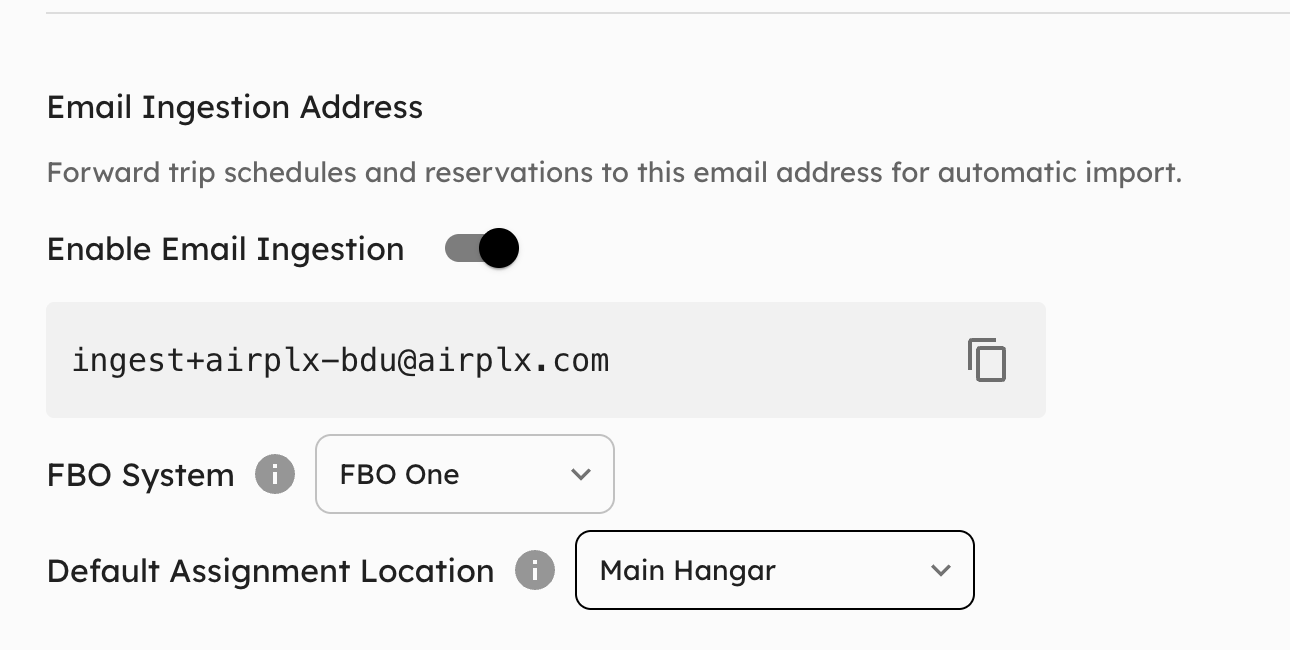
Your Ingestion Email Address

Every AirPlx FBO has a dedicated ingestion email address in this format:

ingest+{your-slug}@airplx.com

The slug (your FBO’s unique identifier) is assigned when your FBO is set up. For example, if your slug is hailey-bdu, your ingestion email address is:

ingest+hailey-bdu@airplx.com

You can find your slug in Settings > Configuration under the Email Ingestion section, or contact AirPlx support if you need help locating it.

The slug must be exact. A single typo in the ingestion email address means emails will silently fail to reach your FBO — there is no bounce or error notification.

Setup

Set Your Timezone

FBO One sends arrival and departure times in local time. AirPlx needs your timezone to convert these correctly to UTC.

  1. Go to Settings > Configuration
  2. Find the Timezone field
  3. Select your FBO’s local timezone (e.g., Australia/Sydney, America/New_York)
  4. Save your changes

Screenshot coming soon — Settings > Configuration timezone field.

If your timezone is not set, times will silently default to UTC, which will make every arrival and departure time incorrect. For example, an 08:20 local arrival in Sydney (UTC+11) would show as 21:20 UTC the previous day — but without a timezone set, it would incorrectly show as 08:20 UTC. Always set your timezone before enabling the integration.

Configure FBO One to Send Emails to AirPlx

You need FBO One to send a copy of handling confirmation emails to your AirPlx ingestion email address. There are two ways to do this:

In FBO One:

  1. Navigate to Administration > Email Message Settings for handling confirmations
  2. Add your ingest+{slug}@airplx.com address as a CC or BCC recipient
  3. Save the settings

This ensures every handling confirmation automatically sends a copy to AirPlx. If you’re unsure where to find this setting, your FBO One administrator or FBO One support  can help — the exact navigation varies depending on your FBO One setup.

Email deliverability note: FBO One uses Amazon SES to send emails. If emails aren’t being delivered, your FBO One administrator may need to verify DNS records (SPF and DKIM). See FBO One’s support article: Setting Up FBO One For Sending Email  (if this link breaks, search for “Setting Up FBO One For Sending Email” in the FBO One Help Center ).

Set a Default Location (Optional)

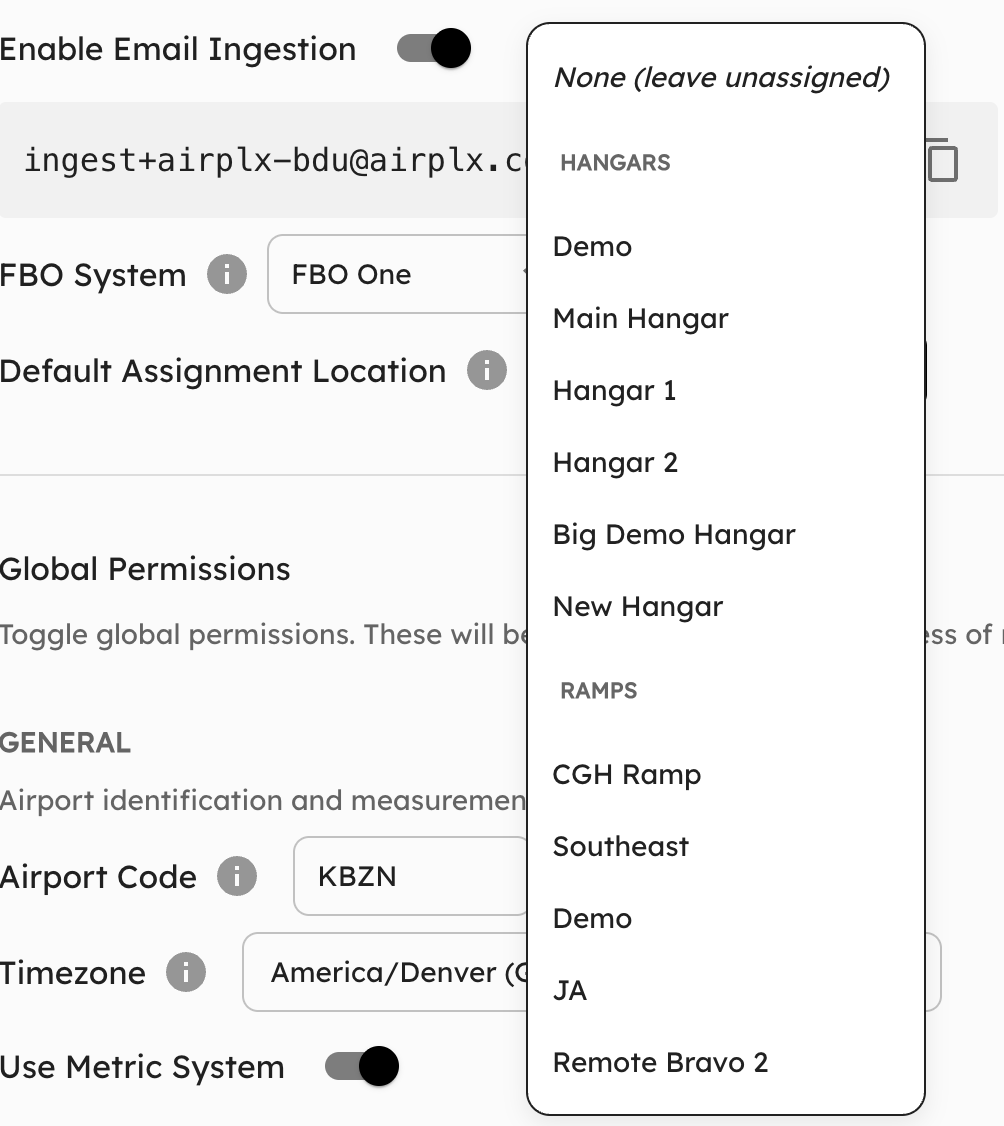
You can configure a default hangar or ramp where all email-ingested trips are automatically assigned. This is useful if most incoming aircraft from FBO One go to the same location.

  1. Go to Settings > Configuration
  2. Find the Default Location field under the Email Ingestion section
  3. Select a hangar or ramp
  4. Save your changes

Screenshot coming soon — Default location setting for email-ingested trips.

You can always reassign a trip to a different location after it’s created.

Verify It’s Working

  1. Have a handling confirmation sent from FBO One (or ask your FBO One admin to send a test)
  2. Wait about 60 seconds — AirPlx checks for new emails once per minute
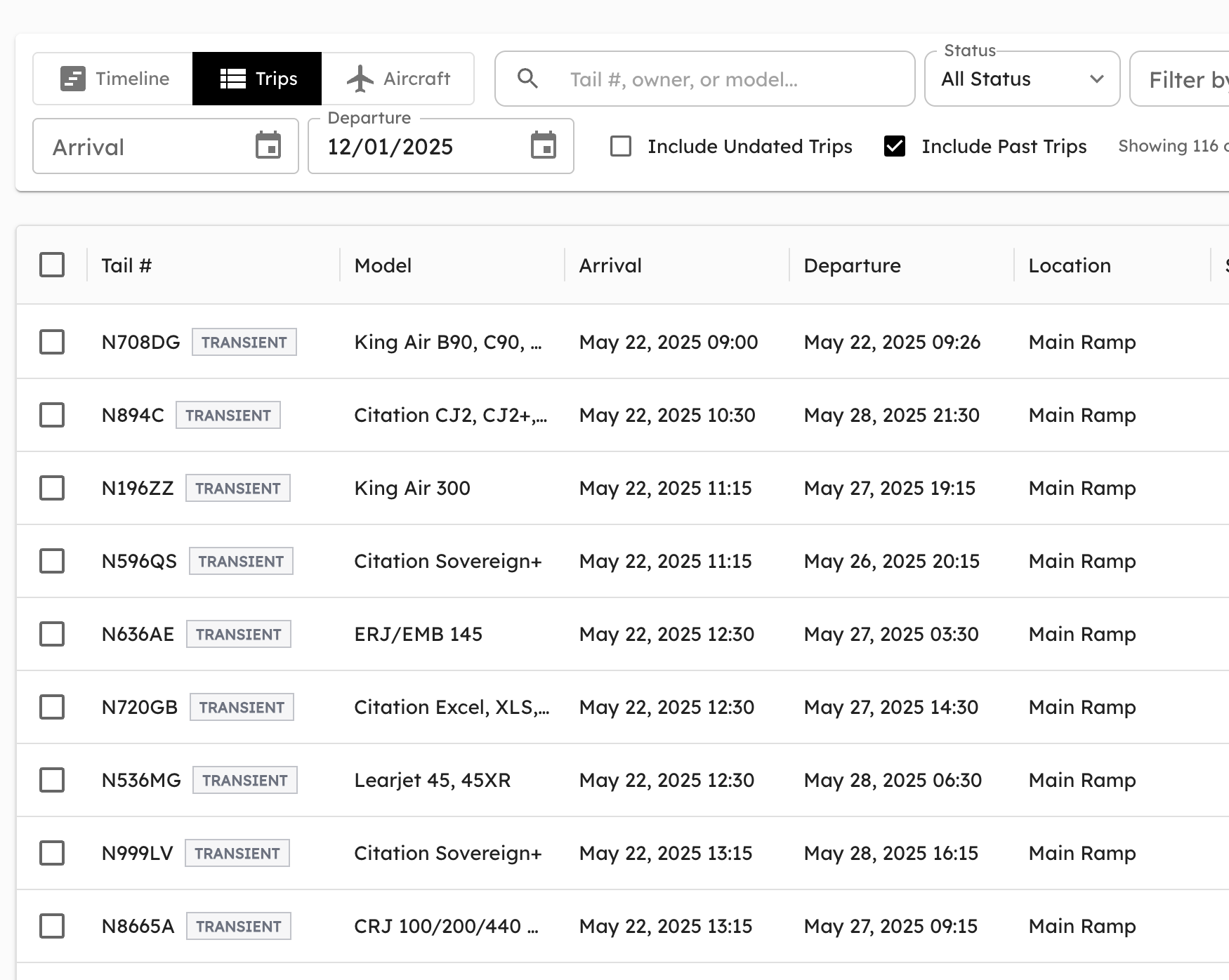
  3. Check your AirPlx schedule — the trip should appear automatically
  4. If the trip doesn’t appear, check the Operations Inbox for items queued for review (see Queued for Review below)

Screenshot coming soon — Trip created from an FBO One email on the schedule view.

What Gets Imported

Each FBO One handling confirmation email creates a trip with the following details:

FieldDescriptionExample
Tail NumberAircraft registrationN930GL, VHVKX, G-ABCD
Aircraft TypeICAO type codeGL6000, E55P, FA7X
OperatorOperating company nameCARGILL INC, Elevate Jet
ETAEstimated arrival (local time, converted to UTC)16-Jan-26 08:20
ETDEstimated departure (local time, converted to UTC)17-Jan-26 10:00
Reference NumberFBO One’s internal referenceBDU-1769

Email Format Examples

Below are real-world examples of the emails AirPlx processes. These are the plain-text handling confirmation emails that FBO One generates.

You may notice “AirPLX” (with a capital PLX) in the sample emails below. This is how FBO One spells it in their system — it’s not a typo.

Example 1: Standard Trip (Arrival + Departure)

The most common scenario — an aircraft arriving and departing on known dates.

Email received:

REF number: BDU-1769 ATTN: AirPLX Hailey Dear Duty Manager, N930GL AC Type: GL6000 Operator: CARGILL INC ETA: 16-Jan-26 08:20 (LT) ETD: 17-Jan-26 10:00 (LT) Kind Regards, AirPlx BDU Phone: +1 208 788 4520 (24hr) Email: ops@airplxbdu.com

Trip created in AirPlx:

FieldValue
Tail NumberN930GL
Aircraft TypeGL6000
OperatorCARGILL INC
ETAJan 16, 2026 08:20 local
ETDJan 17, 2026 10:00 local
ReferenceBDU-1769

Example 2: Arrival Only (No Known Departure)

When an aircraft arrives but there is no departure date scheduled yet, FBO One uses a dash or placeholder for the ETD.

Email received:

REF number: BDU-2075 ATTN: AirPLX Hailey Dear Duty Manager, REGISTRATION: VHVKX AC Type: E55P Operator: REDIJET ETA: 18-Jan-26 13:30 (LT) ETD: - Kind Regards, AirPlx BDU Phone: +1 208 788 4520 (24hr) Email: ops@airplxbdu.com

Trip created in AirPlx:

FieldValue
Tail NumberVHVKX
Aircraft TypeE55P
OperatorREDIJET
ETAJan 18, 2026 13:30 local
ETDNot set
ReferenceBDU-2075

The trip is created with an open-ended stay. You can update the departure time later when it becomes known.

Accepted placeholders for unknown departure: -, TBD, TBA, N/A

Example 3: Returning Home-Based Aircraft

Sometimes an aircraft is based at your FBO and departs for a trip, then returns later. In this case, FBO One records the departure date before the arrival date (since the aircraft left first and is coming back).

Email received:

REF number: BDU-1680 ATTN: AirPLX Hailey Dear Duty Manager, REGISTRATION: N1711M AC Type: GL7T Operator: Elevate Jet ETA: 21-Jan-26 06:00 (LT) ETD: 28-Dec-25 19:03 (LT) Kind Regards, AirPlx BDU Phone: +1 208 788 4520 (24hr) Email: ops@airplxbdu.com

What’s happening: The aircraft departed Hailey on Dec 28, 2025 and is returning on Jan 21, 2026. AirPlx recognizes this pattern and creates the trip accordingly.

FieldValue
Tail NumberN1711M
Aircraft TypeGL7T
OperatorElevate Jet
ETAJan 21, 2026 06:00 local
ETDDec 28, 2025 19:03 local
ReferenceBDU-1680

Example 4: Departure Only (Aircraft Already at Your FBO)

When an aircraft is already parked at your FBO and only has a scheduled departure, FBO One sends an email with an ETA placeholder and a known ETD.

Email received:

REF number: BDU-2101 ATTN: AirPLX Hailey Dear Duty Manager, REGISTRATION: VH87X AC Type: C680 Operator: FLIGHT OPTIONS ETA: - ETD: 22-Jan-26 14:00 (LT) Kind Regards, AirPlx BDU Phone: +1 208 788 4520 (24hr) Email: ops@airplxbdu.com

Trip created in AirPlx:

FieldValue
Tail NumberVH87X
Aircraft TypeC680
OperatorFLIGHT OPTIONS
ETANot set
ETDJan 22, 2026 14:00 local
ReferenceBDU-2101

The same placeholders accepted for unknown departure also work for unknown arrival: -, TBD, TBA, N/A

Tail Number Formats

AirPlx handles various international aircraft registration formats:

FormatExampleRegion
N-numberN930GL, N1711MUnited States
VH prefixVH87X, VHVKX, VHMSUAustralia
G prefixG-ABCD, G-LUXEUnited Kingdom
D prefixD-ABCD, D-IFLYGermany
C prefixC-GXYZ, C-FJTSCanada
Other ICAOVarious formatsInternational

Tail numbers can appear in the email in two ways:

Unlabeled (on its own line after “Dear Duty Manager,”):

Dear Duty Manager, N930GL AC Type: GL6000

Labeled (with REGISTRATION: prefix):

REGISTRATION: VHVKX AC Type: E55P

Both formats are handled automatically.

Queued for Review

Not every email results in an immediate trip. When AirPlx can’t fully process an email — for example, if the aircraft’s tail number isn’t in the database — the item is sent to your Operations Inbox for manual review.

To find queued items:

  1. Go to Operations > Inbox from the main navigation (or look for the Inbox icon in your navigation bar)
  2. Items from email ingestion will appear with details about what needs attention
  3. Resolve the issue (e.g., add the missing aircraft) and then process the item from the Inbox

Screenshot coming soon — Operations Inbox with a queued email item.

Common reasons an email is queued rather than processed automatically:

  • Unknown aircraft — The tail number isn’t in the AirPlx database. Add the aircraft manually, then process the queued item from the Operations Inbox.
  • Parsing issues — The email format didn’t match what AirPlx expected. Your ops team can review the details and create the trip manually.

Good to Know

There are a few behaviors and limitations worth understanding as you use the integration day to day.

Cancellations Are Not Supported Yet

AirPlx currently processes handling confirmation emails only. If a trip is cancelled in FBO One, the cancellation email is not processed — you’ll need to cancel or remove the trip manually in AirPlx. This is on our roadmap.

Amended Confirmations Create New Trips

If a trip’s times change and FBO One sends a new confirmation email, AirPlx treats it as a separate email and will attempt to create a new trip. If a trip already exists for the same aircraft with overlapping dates, the duplicate may be automatically skipped. However, if the dates have changed enough to not overlap, a second trip will be created. Review your schedule after amendments and remove any duplicates.

Duplicate Trip Prevention

AirPlx tracks every email by its unique ID, so the same email processed twice will not create a duplicate trip. Additionally, if a trip already exists for the same aircraft with overlapping dates, the system will skip creating a duplicate.

Departure-Only Emails

AirPlx supports emails where the aircraft is already at your FBO and only has a scheduled departure (ETA is - or TBD). See Example 4 above.

Troubleshooting

Emails are not appearing as trips

The most common cause is a missing or incorrect timezone setting. Check this first.

  1. Check your timezone — Go to Settings > Configuration and make sure your timezone is set correctly
  2. Verify the ingestion email address — Confirm FBO One is sending to the correct ingest+{slug}@airplx.com address. A single typo in the slug will silently prevent processing with no error notification
  3. Check email delivery — Ask your FBO One admin to verify that emails are being sent successfully (FBO One has a “Send Test Email” feature under Administration)
  4. Wait 60 seconds — AirPlx checks for new emails once per minute
  5. Check the Operations Inbox — The email may have been received but queued for review rather than processed automatically. Go to Operations > Inbox to check

Aircraft not found

If an aircraft’s tail number isn’t in the AirPlx database (common with foreign registrations), the email is queued for review in your Operations Inbox rather than creating a trip immediately. To resolve:

  1. Go to Operations > Inbox and find the queued item
  2. Add the aircraft to AirPlx manually
  3. Process the queued item from the Inbox

Arrival or departure times are wrong

If all times are off by the same number of hours, your timezone is almost certainly set incorrectly.

  • Check your timezone setting in Settings > Configuration
  • FBO One sends times in local time (marked with (LT) in the email)
  • AirPlx converts local time to UTC using your configured timezone
  • If no timezone is configured, times default to UTC

Example: An 08:20 arrival in Sydney should show as:

  • Local: 08:20 AEDT (UTC+11)
  • UTC: 21:20 the previous day

FAQ

Can I change my ingestion email address? The slug is assigned based on your FBO setup. Contact AirPlx support if you need it changed.

What if I use a system other than FBO One? Contact AirPlx support to discuss integration options for your system.

Can I choose where incoming trips are assigned? Yes — you can set a default hangar or ramp location during setup. See Set a Default Location in the setup steps above.

How quickly do trips appear after the email is sent? AirPlx checks for new emails every 60 seconds, so trips typically appear within 1-2 minutes.

What happens if the same email is processed twice? Each email has a unique ID. Duplicate emails are automatically ignored — you won’t get duplicate trips.

Does AirPlx have access to my other emails? No. AirPlx only processes emails sent to your specific ingest+{slug}@airplx.com ingestion email address. Emails sent to other addresses are not read or accessible.

What happens when FBO One sends a cancellation? Cancellation emails are not processed at this time. If a trip is cancelled in FBO One, you’ll need to remove it from AirPlx manually. Cancellation support is planned for a future release.

What happens when trip times are amended and a new email is sent? Amended confirmations are treated as new emails. If the dates overlap with an existing trip for the same aircraft, the duplicate may be skipped. If the dates have changed significantly, a new trip may be created. Check your schedule after amendments.

What if I get a non-FBO One email at my ingestion email address? AirPlx only processes emails matching the FBO One handling confirmation format. Other emails sent to your ingestion email address are ignored.

Where do I find emails that couldn’t be processed automatically? Check your Operations > Inbox. Items that need manual review — such as unknown aircraft — appear there with details about what went wrong.

Last updated on