FlightBridge Integration
Already using FlightBridge to manage your trip schedules? Connect it to AirPlx and your trips, aircraft, and service requests flow into your hangar and ramp planning automatically. No double entry, no copy-paste, no stale data. When something changes in FlightBridge, AirPlx updates within minutes.
How It Works
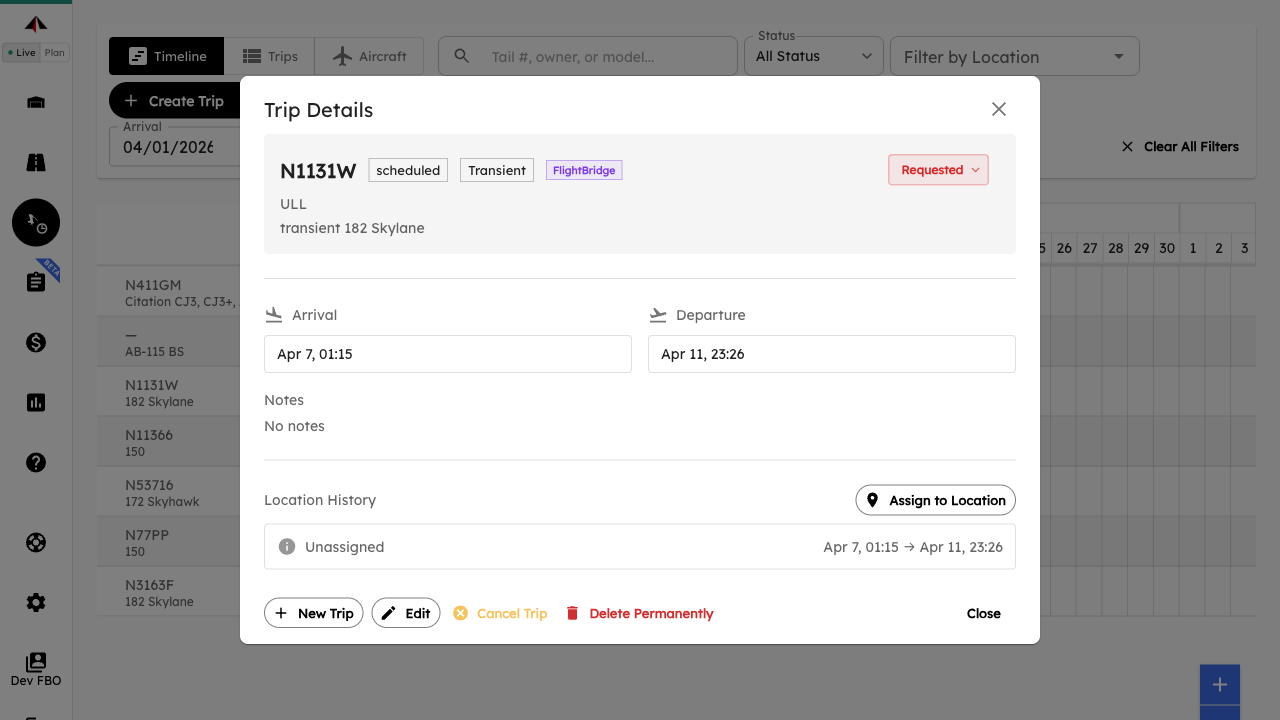
When a trip is created or updated in FlightBridge, AirPlx automatically picks it up. The aircraft, arrival and departure times, operator, and any service requests all come across — your team doesn’t have to enter anything twice. Trips show up on your AirPlx schedule ready to be planned into hangars and ramps.
AirPlx checks FlightBridge for updates every few minutes, so your schedule stays current throughout the day without anyone having to think about it.
What Gets Synced
Trips
Every trip in FlightBridge that involves your airport is automatically imported with the key details your team needs for planning.
| Field | Description | Example |
|---|---|---|
| Tail Number | Aircraft registration | N930GL, G-LUXE, VH-FBQ |
| Aircraft Type | ICAO type designator | GL6000, E55P, FA7X |
| Operator | Operating company or code | ULL, EJT, CARGILL |
| Arrival Time | When the aircraft arrives at your airport | Mar 15, 2026 2:30 PM |
| Departure Time | When the aircraft departs your airport | Mar 16, 2026 10:00 AM |
| Trip Status | Current state of the trip | Scheduled, Active, Completed, Cancelled |
When a trip’s status changes in FlightBridge — say it goes from scheduled to cancelled — that update is reflected in AirPlx automatically.
Aircraft
When a trip comes in for an aircraft that isn’t already in your AirPlx database, AirPlx checks the FAA registry to match the tail number to the correct aircraft type and dimensions. If a match is found, a new aircraft record is created automatically and flagged for your team to review.
If the tail number can’t be matched — common with international registrations — the trip is sent to your Operations Inbox for manual review. Your team can add the aircraft and process the trip from there.
Service Requests
Service requests attached to trips in FlightBridge are synced into AirPlx, so your ops team can see what each aircraft needs during its stay — right alongside the hangar and ramp plan.
| Service Type | Examples |
|---|---|
| Fuel | Jet-A top-off, specific quantity requests |
| Hangar | Overnight hangar, transient hangar request |
| Ground Services | GPU, lavatory, de-icing, towing |
| Catering | Crew meals, passenger catering orders |
| Ground Transportation | Crew car, rental car, limo service |
| Hotel | Crew hotel accommodations |
Each service item includes its current status so your team knows what’s been requested, what’s in progress, and what’s been completed.
Getting Set Up
The FlightBridge integration is set up by the AirPlx team on your behalf. Here’s what you’ll need:
Contact AirPlx
Reach out to your AirPlx representative or email support@airplx.com to request the FlightBridge integration. We’ll walk you through the process and get it enabled for your FBO.
Provide Your FlightBridge Details
We’ll need a couple of pieces of information to connect your accounts:
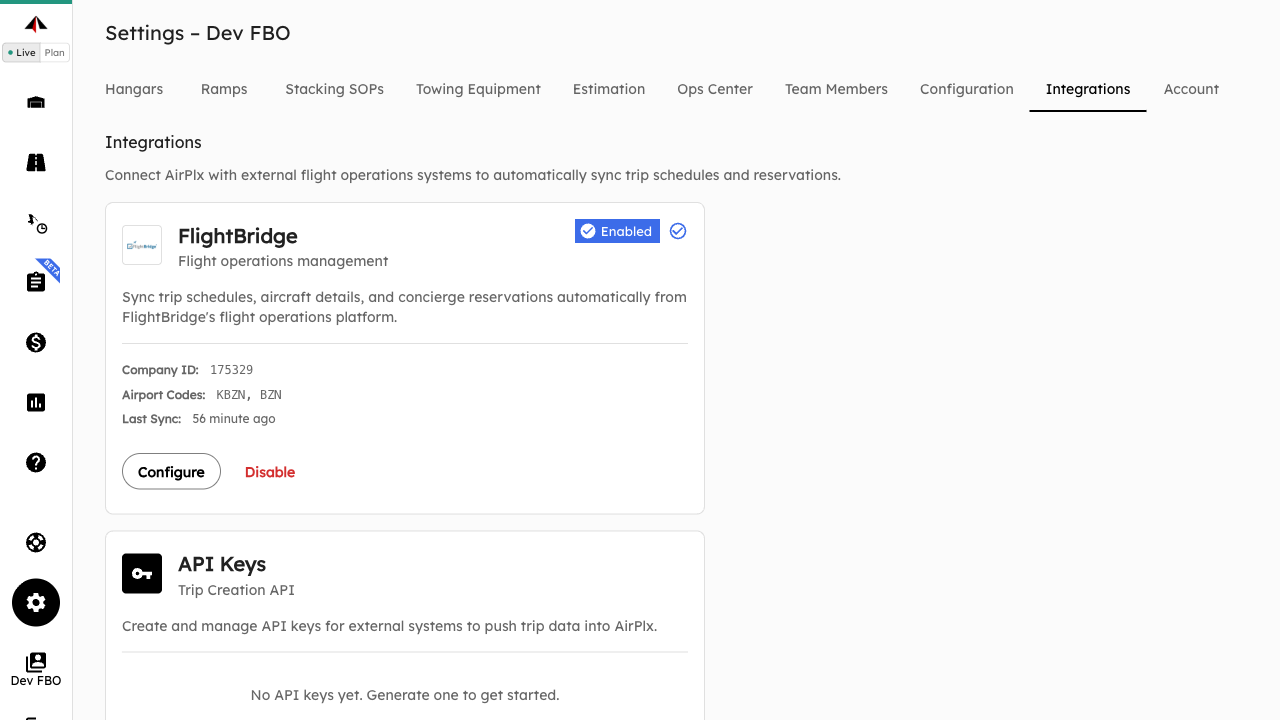
- Company ID — Your FlightBridge company identifier
- Airport Codes — The ICAO and/or IATA codes for your airport (e.g.,
KBZNandBZN)
AirPlx uses your airport codes to filter trips — only flights arriving at or departing from your airport are imported. Everything else is ignored, so your schedule stays clean.
AirPlx connects to FlightBridge using our own API credentials — you don’t need to manage any API keys or passwords on your end.
Verify Data Is Flowing
After setup, trips should start appearing on your AirPlx schedule within minutes. Check that:
- Recent FlightBridge trips show up on your schedule
- Aircraft details (tail number, type, operator) look correct
- Service requests are attached to the right trips
If anything looks off, reach out to AirPlx support and we’ll sort it out.
Good to Know
Nothing Changes in FlightBridge
AirPlx pulls trip data from FlightBridge — your FlightBridge workflows, data, and processes are completely unaffected. AirPlx is just reading the trip information so your team can use it for hangar and ramp planning.
New Aircraft Handling
When FlightBridge sends a trip for an aircraft your team hasn’t seen before, AirPlx tries to match it against the FAA registry and create a record automatically. If it can’t find a match, the trip goes to your Operations Inbox for manual review. Either way, your team can verify the details and fill in anything extra like preferred parking or owner information.
Duplicate Prevention
AirPlx keeps track of which trips it has already imported. If the same trip comes through again during a routine sync, AirPlx recognizes it and skips it — no duplicate is created. You won’t end up with extra trips cluttering your schedule.
Data Security
All communication between AirPlx and the FlightBridge API uses HTTPS encryption. API credentials are only used for authentication and are never shared outside of AirPlx infrastructure.
FAQ
How quickly do trips appear after being created in FlightBridge? AirPlx syncs with FlightBridge every few minutes, so new trips typically appear on your schedule within about 5 minutes.
What if an aircraft from FlightBridge isn’t in our AirPlx database? AirPlx checks the FAA registry to match the tail number. If found, a new aircraft record is created automatically and flagged for review. If no match is found (common with international registrations), the trip goes to your Operations Inbox for your team to handle manually.
What happens if a trip is cancelled in FlightBridge? The trip’s status in AirPlx is updated to cancelled during the next sync. You can then remove it from your schedule or keep it for your records.
Is our FlightBridge data secure? Yes. All API communication is encrypted via HTTPS, and API credentials are only used for authentication.
Do we need a specific FlightBridge plan? You need a FlightBridge account with API access enabled. If you’re not sure whether your plan includes API access, reach out to AirPlx support and we’ll help you figure it out.
Can we control which trips are imported? Yes. AirPlx only imports trips with flights arriving at or departing from your airport. Flights that don’t involve your airport are ignored entirely.
What if we stop using FlightBridge? Trips that were already synced stay in AirPlx. Turning off the integration stops future syncing but doesn’t delete any existing data. You can turn it back on anytime.
Who do I contact if something isn’t syncing correctly? Email support@airplx.com. We can check sync status, review logs, and troubleshoot any issues.