Radio Transcripts
Once your AirPlx Radio is paired and online, everything it hears shows up in Radio Transcripts — a searchable, replayable log of your radio traffic.
Open it from Radio Transcripts in the left sidebar, or go straight to
app.airplx.com/#/radio/log.
Radio Transcripts is visible to any team member once Radio is turned on for your FBO. (Pairing and managing devices is limited to managers and admins — see Managing devices.)
Anatomy of the screen
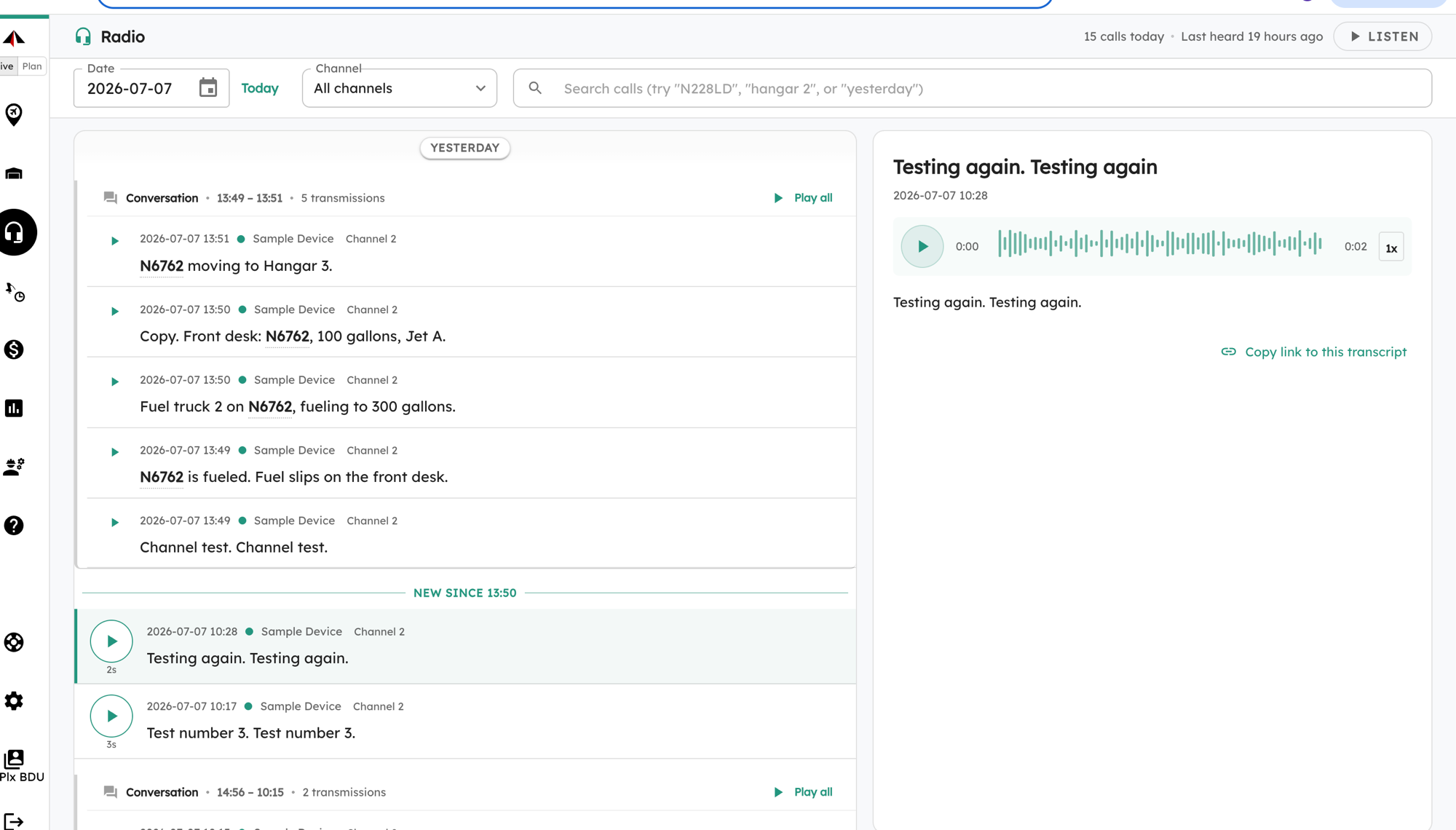
The screen has three parts: a header strip across the top, the transcript list on the left, and the inspector on the right.
Header strip (top-right)
- “15 calls today” — how many transmissions are loaded in the current view.
- “Last heard 19 hours ago” — how long since the newest transmission came in, updated automatically. If nothing has been heard for over 24 hours this turns into a warning — “No calls heard for … — check radio status” — which usually means a radio device has gone offline (see Troubleshooting).
- LISTEN — turns on the live scanner (see Live view below).
Filter toolbar — Date, Today, Channel, and the Search calls box. All covered under Searching and Filtering.
Transcript list (left)
- Day dividers — sticky Today / Yesterday pills separate the log by day.
- Conversation cluster — a back-and-forth exchange is grouped into one card with a header like “Conversation · 13:49 – 13:51 · 5 transmissions” and a Play all button. A single stray transmission shows on its own, with no card.
- “New since HH:MM” divider — a green line marking everything that has arrived since you last looked (see Live view).
- Transcript row — the time it was heard, a colored dot and the channel it came in on, a play button with the clip length beneath it, and the transcript text. Tail numbers are bold and clickable. Hovering a row reveals a star (mark important) and a copy-link button.
Inspector (right) — click any row to open it here (a drawer on a phone). It shows the transmission’s title and time, an audio player, the full transcript, and Copy link to this transcript.
The waveform, the 0:00 marker, and the 1x label in the player are
visual only — there’s no scrubbing or speed control. Press play to hear the
clip; the words highlight along with the audio as it plays.
Reading the log
Transmissions are grouped into conversations — the back-and-forth of a single exchange — and shown newest-first, with Today / Yesterday dividers between days. Each row shows the time it was heard and the channel it came in on.
Pick any row to open the inspector on the right (or a drawer on a phone), where you can see the full conversation around it and play the audio.
Cleaned-up transcripts
When a conversation goes quiet, AirPlx re-reads the whole exchange and rewrites
the raw speech-to-text into clean phraseology — most importantly expanding
spoken callsigns into real tail numbers. If a pilot reads “November four three
two Quebec Sierra Romeo,” the cleaned transcript shows N432QSR, so the log
is easy to scan.
That cleanup takes a moment, so a row may briefly show a small chip:
- Processing… — the cleaned version is still being prepared. The raw transcript is shown in the meantime; the cleaned one replaces it in place about 1–2 minutes after the conversation goes quiet — no refresh needed.
- Raw — automatic cleanup wasn’t available for this one, so the raw transcript is shown as-is.
Most rows show no chip at all — either they’re already cleaned up, or there was nothing to clean (a single transmission with no conversation around it).
Searching
Use the search box at the top — it understands plain language. Try:
- a tail number —
N228LD - a place —
hangar 2 - a time —
yesterday
Matches are highlighted in the results, and search reaches back over the past 90 days. Tail-number searches also match phonetically-spelled callsigns, so you’ll find a call even if it was read out letter-by-letter. Tail numbers inside a transcript are clickable — tap one to see everything from that aircraft that day.
Filtering
- Date — pick a day. Today is the live view (updates automatically); any past day shows that day’s history.
- Channel — narrow to one radio device.
- Feed — within a channel, narrow to a single audio feed. Feeds show a health state so you can spot one that has no signal.
Playing the audio
Every transmission with recorded audio has a play button. In a conversation you can Play all to hear the clips back-to-back, with two modes:
- Transcript — clips play one after another with no gaps.
- Real time — clips play with the real pauses between them, as they happened.
A waveform shows as it plays and the words highlight along with the audio. If a clip has no recording, you’ll see “No audio available.”
Live view
When you’re viewing Today, the log updates every few seconds as new traffic comes in. A “New since HH:MM” divider marks where the new arrivals begin, so you can see what’s come in since your last visit. If you’ve scrolled down, a ”↑ N new · Jump to live” pill appears so you can jump back to the latest.
Turn on LISTEN to have new transmissions auto-play as they arrive, like a scanner. Selecting a past date turns live updates off.
Saving & sharing
- Copy link — copies a direct link to a transcript or conversation so you can share it with a teammate.
- Mark important — stars a transmission so you can find it again later.
Daily Radio Report
Looking for a summary of what happened — events and movements AirPlx detected across
the day — rather than the raw log? That lives in the separate Daily Radio
Report (app.airplx.com/#/reports/daily-radio). The Radio Transcripts screen
stays focused on the transcript itself.