Using Radio with AI Assistants
You can connect AirPlx Radio to AI assistants such as ChatGPT, Claude and Microsoft Copilot. Once connected, you can ask about your radio traffic in plain language: “What happened on the ramp this morning?”, “Find every call about N977MR yesterday”, “Summarize last Saturday’s shift.” The assistant looks up the answer in your AirPlx Radio transcripts.
The connection uses MCP (Model Context Protocol), the standard way AI assistants connect to outside tools. Every assistant uses the same AirPlx Radio connector.
The connector is read-only. An assistant can search and read your radio transcripts and summaries; it cannot change, delete or send anything in AirPlx.
What an assistant can see
- Only your locations. The assistant sees exactly the FBOs your AirPlx account belongs to, the same as Radio Transcripts in the app. It signs in as you, and AirPlx checks your access on every request.
- Radio transcripts: the time, channel, tail number and text of each transmission, plus the rest of the conversation it belongs to.
- Daily radio summaries: the same operations notes as the Daily Radio Report, for one location and one day (local midnight to midnight).
It cannot see audio, anything outside Radio, or other FBOs’ data. If someone leaves your team and is removed from your FBO in AirPlx, their assistant loses access on its next request.
Connect an assistant
You need an AirPlx account with access to at least one location that has AirPlx Radio. The connector address is:
https://radio.airplx.com/mcp-
In your AI assistant, add a custom connector (some apps call it an MCP server, MCP app or MCP tool) and paste the address above.
- ChatGPT: Plugins → Add → Create MCP App. Enter the name “AirPlx Radio”, paste the address as the Server URL, keep Authentication on OAuth, tick the acknowledgement and click Create. Your ChatGPT plan or workspace admin must allow custom apps.
- Claude: Settings → Connectors → add a custom connector. Your Claude plan or organization owner must allow custom connectors.
- Microsoft Copilot Studio: add an MCP tool and choose OAuth 2.0 sign-in.
- Claude Code:
claude mcp add --transport http airplx-radio https://radio.airplx.com/mcp
-
The assistant opens an AirPlx page in your browser. Sign in the way you normally do (Microsoft, Google or email and password).
-
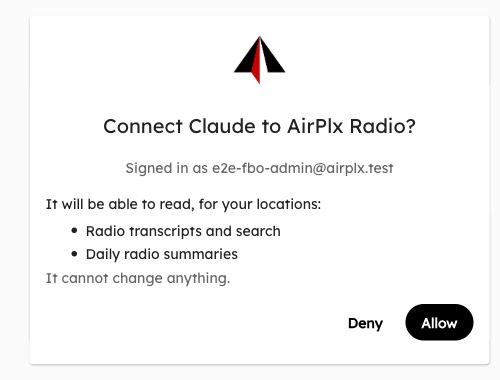
AirPlx asks whether to connect the assistant:
-
Check the account and click Allow. The browser returns you to your assistant, which is now connected.
Click Deny instead and the assistant gets no access.
Each person connects their own assistant with their own AirPlx account. Don’t share one connected assistant across a team: everyone it serves would see whatever that one account can see.
Asking questions
Ask the way you’d ask a colleague who has the radio log in front of them. Some examples:
- “Summarize yesterday’s radio traffic at KFXE.”
- “Were there any calls about fuel for N977MR this week?”
- “What was said on the Line channel between 14:00 and 15:00 today?”
- “Show me the full conversation around that last call.”
Things that help:
- Name the location if your account covers more than one FBO. Use the FBO name or its airport code. If you don’t, the assistant will ask which one you mean.
- Times are local to the location unless you say otherwise.
- Searches cover up to 90 days at a time. For a longer stretch, ask about one period at a time.
- Tail numbers find the whole conversation, including replies that don’t repeat the tail (“copy, pulling it into hangar 3”).
Daily summaries
Asking for a day’s summary returns the same notes as the Daily Radio Report: a headline, an overview, activity by service, activity by aircraft, and follow-ups.
If nobody has opened that day’s summary yet, AirPlx writes it when the assistant asks. That can take a few minutes; later requests for the same day come back immediately.
Transcripts come from automatic speech recognition and may be incomplete or inaccurate, and an assistant’s answer can be wrong too. Treat what it tells you as a starting point, and check the transcript or audio in AirPlx before acting on anything important. See Privacy & Recording.
Disconnecting
To stop an assistant using your AirPlx Radio data, remove or disconnect the AirPlx Radio connector in that assistant’s settings. To connect again later, repeat the steps above.
Troubleshooting
“This request expired.” The connect page is valid for 10 minutes. Start the connection again from your assistant.
“Your AirPlx account has no locations with radio access.” Your account isn’t on any FBO team yet. Ask your FBO’s AirPlx admin to invite you (see Team Members).
The assistant says a location doesn’t match any of yours. It lists the locations you do have; use one of those names or airport codes. If a location is missing, you aren’t on that FBO’s team in AirPlx.
A summary request takes a long time. That day hadn’t been summarized yet; see Daily summaries. If it fails, try again in a minute.
Something else. Contact AirPlx support.